

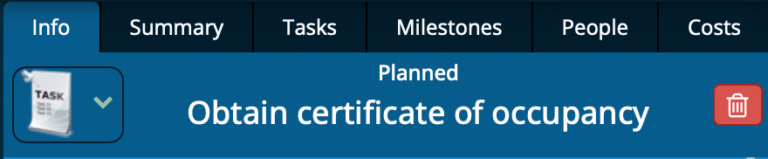
The Info tab in the Data Panel shows the key information and editable properties of the item selected on the Whiteboard or in the Gantt chart.
When an item is selected, the Data Panel automatically switches to the Info tab. This allows the user to see and edit the details of the selection without manually changing tabs.
The Info tab adapts to the type of item that is selected. Each type displays a different set of fields. Some fields are informational, and others allow the user to update properties directly.
Supported selection types include:
Tasks
Milestones
Groups
Meetings
People resources
Equipment resources
Tasks
When you select a task on the Whiteboard or Gantt chart, the Info tab displays all of that task’s properties.
For detailed explanations, see Task Properties.
Whiteboard icon
The picture that appears on the Whiteboard for this task.
👉 Learn more → Task Properties: Whiteboard icon
Name
The name of the task.
👉 Learn more → Task Properties: Name
When can it start
Controls the earliest date and conditions under which the task is allowed to begin.
👉 Learn more → Task Properties: When can it start
Resourcing rules
Applies when two or more resources are assigned. Determines whether any, all, or a minimum number of resources must be available for the task to start.
👉 Learn more → Task Properties: Resourcing rules
How long will it take
The effort required to complete the task. Users can enter any combination of numbers and units.
👉 Learn more → Task Properties: How long will it take
Priority
Determines how the task is treated during scheduling and resource leveling. Higher numbers mean higher priority.
👉 Learn more → Task Properties: Priority
Maximum hours per day
Optional limit on how many hours per day this task can be worked on.
👉 Learn more → Task Properties: Maximum hours per day
Notes
A free-form text area for additional information or project-specific instructions related to the task.
👉 Learn more → Task Properties: Notes
People section
Shows all people currently assigned to the task, along with their role icon and a delete button (red bin).
💡 Tip: Adding more people may allow the task to finish sooner depending on resource rules and scheduling settings.
Costs section
This section displays any cost items attached to the task.
Click Add costs to enter one or more cost entries.
👉 This section automatically expands when costs exist and collapses when none are present.
For more information, see Task Costs.
Subtasks section
Subtasks let you add lower-level steps within a task without cluttering the Whiteboard and Gantt chart with extra items.
⚠️ Important: Subtasks are scheduled in series, not in parallel. If steps can be completed at the same time, create separate tasks instead.
For more information, see Subtasks.
Timesheet section
There are two ways to record actual work on a task:
Percent complete. Fast and simple.
Timesheet editor. Full accuracy and control.
Most users update percent complete for speed. Use timesheets when you need detailed, time-specific records.
For more information, see % Complete & Timesheets.
Schedule section
Shows the detailed day-by-day schedule for the task, including:
Who is working
Actual or planned start/end times
Total duration
Total work in hours
The section is collapsed by default because it contains a lot of detail.
Once expanded, it stays open until the user collapses it.
👉 This is the best way to verify how the scheduling engine allocated work.