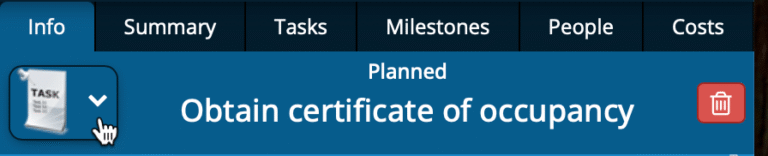
Each task has an icon that appears on the Whiteboard. This icon can help identify the type of work or category the task belongs to.
You can change the icon by clicking the current icon shown in the top-left corner of the Info tab.
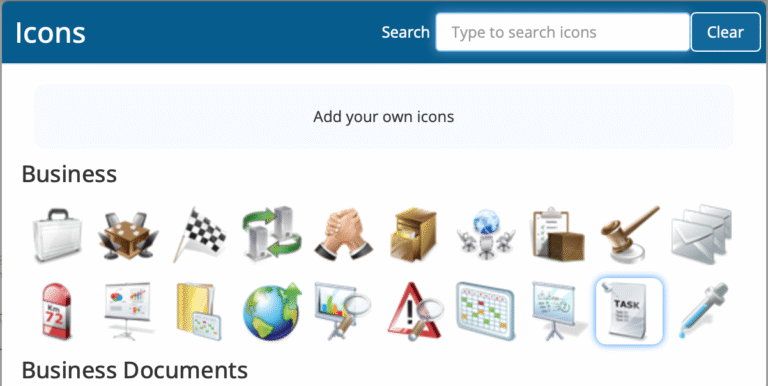
There are two ways to choose an icon:
Select from the built-in icon library
Upload your own custom icon
💡 Tip: Use consistent icons for similar types of tasks so the Whiteboard is easier to scan at a glance.
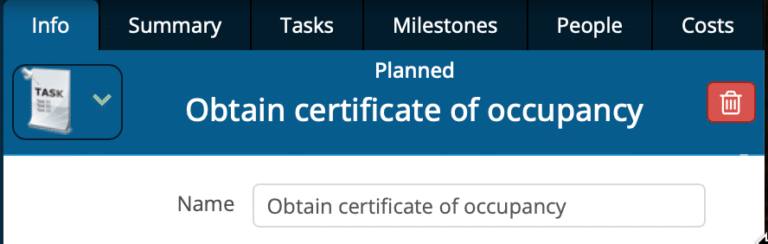
Name
The name of the task.
💡 Tip: Keep task names concise so they are easy to read on the Whiteboard.
When can it start?
Controls when the task is allowed to begin.
The default is As soon as possible, which means the task starts as soon as:
Its predecessors allow, and
Assigned resources are available.
The user can also choose After a date and time, which prevents the task from starting before the selected date.
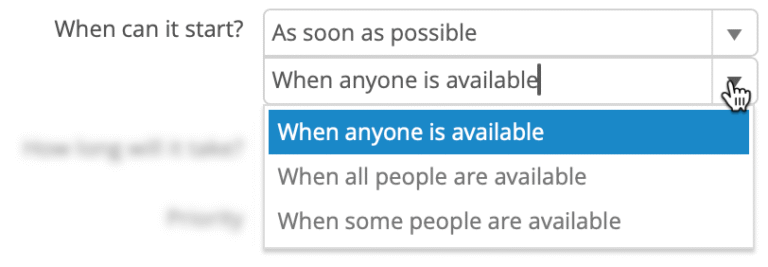
Resourcing rules
Shown only when two or more resources are assigned.
The options are:
When anyone is available (default)
When all people are available
When some people are available
User sets Minimum people
User sets Maximum people
👉 Note: If no equipment resources exist in the plan, resources are referred to as people in the UI. As soon as an equipment resource is added to the plan, the terminology in the UI changes to resources.
Duration
The duration is the user’s estimate of how long it will take to complete the task.
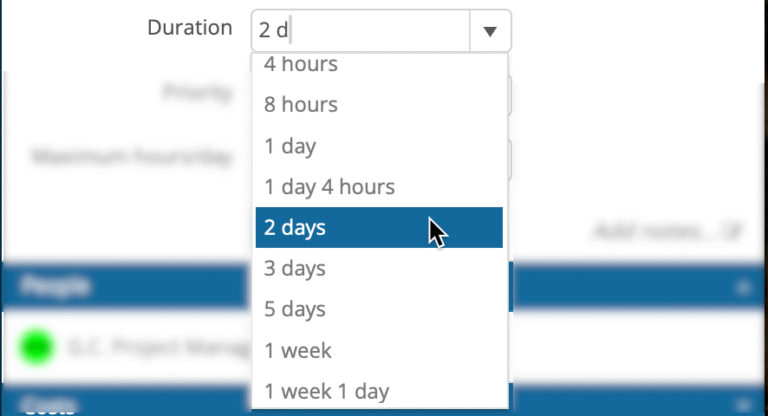
Users can enter any combination of values and units. Abbreviations are allowed. The drop-down list shows examples of valid entries.
👉 Note: If only a number is entered, the default unit comes from Plan Settings. Unless changed by the user, the default unit is days.
Priority
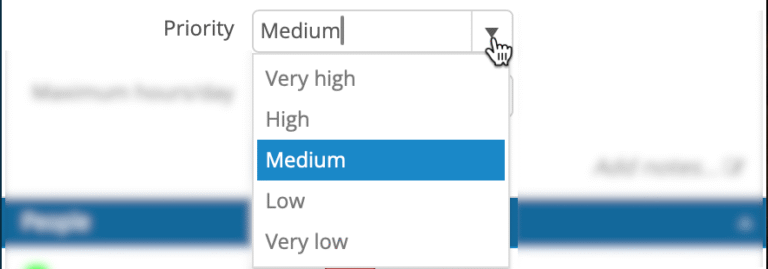
The task priority determines how the task is treated during resource leveling. The default value is Medium.
Users can select a value from the drop-down list or enter any integer from 1 to 1000.
The drop-down list maps to priority values as follows:
Very low (100)
Low (300)
Medium (500)
High (700)
Very high (900)
⚠️ Important: A higher number means higher priority.
Maximum hours per day
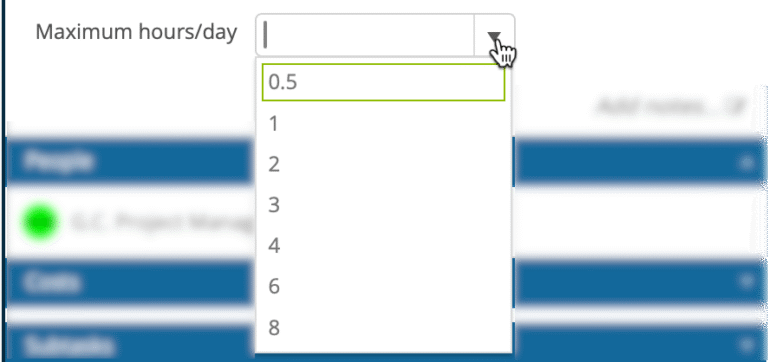
Optional field that limits how many hours per day this task can be worked on.
💡 Tip: This field is useful when a person needs to work on two tasks on the same day. For example, if you enter 4, the highest-priority task will be worked on for the first four hours of the day, and then the person will switch to another task for the remainder of the day.
Notes
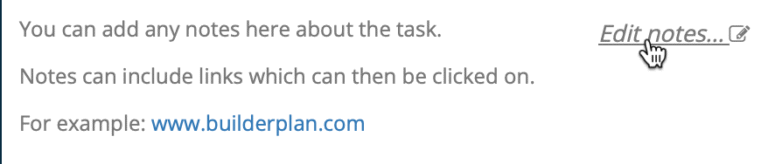
Notes allow you to record additional information about the task that does not affect scheduling.