

The Tracking section is where you record progress on a task. There are two ways to track actual work:
1. % Complete
Fast, simple progress updates.
2. Timesheets
Detailed, time-specific work records with full control.
Most users update % Complete because it is quick and requires minimal input.
For users who need precise start/finish times or who work in multiple time blocks, the Timesheet editor provides complete accuracy and flexibility.
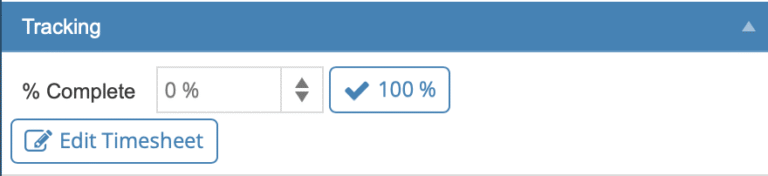
% Complete
The % Complete field is the quickest way to update a task’s progress. Enter any value from 0% to 100%.
A planned task begins at 0% and updates to In Progress as soon as the value is greater than zero.
Updating progress
Enter any percentage manually, or
Click the 100% button to mark the task as finished with one click.
When you mark a task 100% complete, a dialog appears asking When did the task finish?
Completion Options
You can choose from three options:
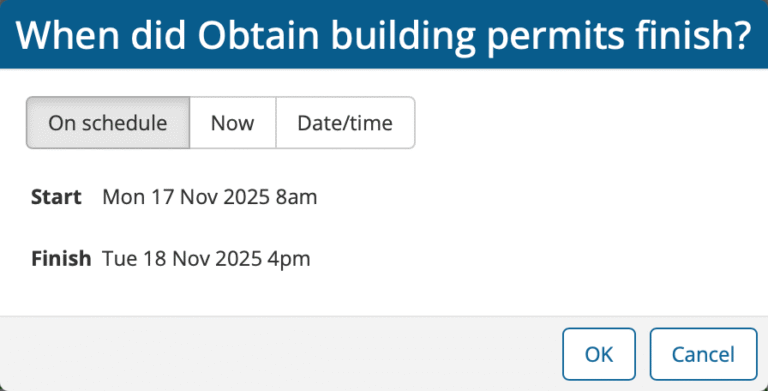
1. On schedule (default)
Use this when the task finished exactly as scheduled.
The actual dates match the planned dates.
No downstream schedule changes are required.
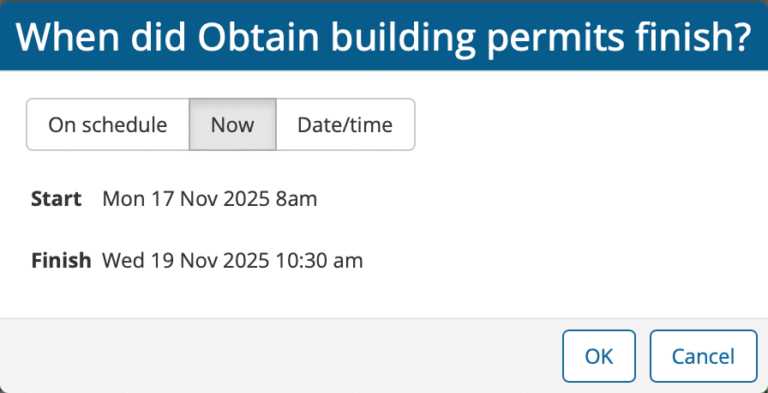
2. Now
For users working in real time.
This setting records the task as finishing right now, rounded to the nearest 15 minutes.
This keeps updates fast and avoids selecting times manually.
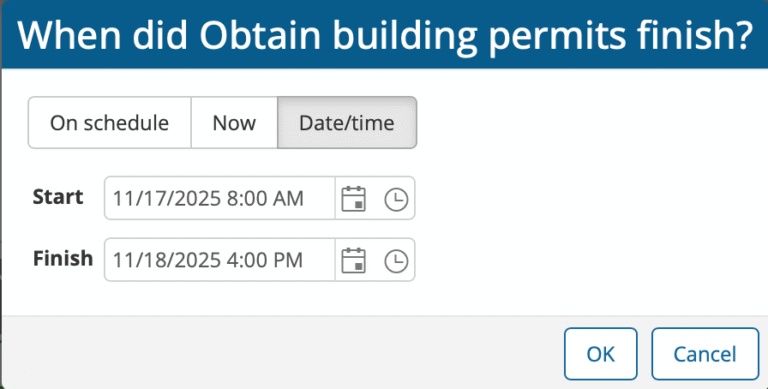
3. Date/time
Choose this when the task did not finish on schedule.
You can specify:
The actual start time
The actual finish time
This is the best option for keeping your schedule accurate, especially when the task finished early or late.
How % Complete creates Actuals
When you use % Complete, the software creates actual work records automatically.
Because only start and finish times are provided (not detailed time entries), the system assumes:
The assigned resources worked continuously during their normal working hours
From the actual start to the actual finish
This is usually good enough for most users.
However, if the task was worked on intermittently and you want to record this level of detail Timesheets will give you this level of accuracy.
Timesheets
While % Complete is the fastest way to update progress, Timesheets provide full accuracy, capturing exactly when and how work was performed. Timesheets are ideal when:
A task was completed earlier or later than scheduled
Work was done intermittently (not continuously)
Multiple people worked on different parts of the task
You need precise labour actuals for reporting or cost tracking
Click Edit Timesheet to open the Timesheet dialog.
The Timesheet Dialog
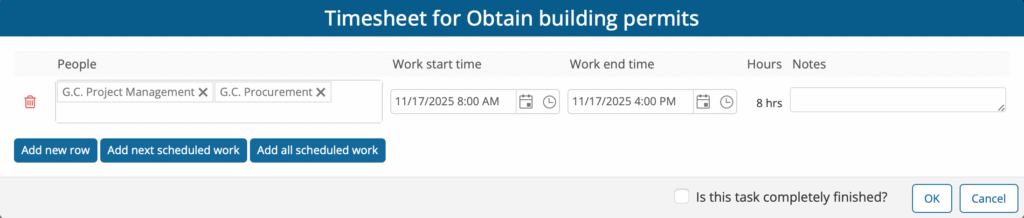
When the Timesheet opens for the first time on a planned task, it is pre-populated with the first day of scheduled workfor that task.
This saves time and encourages day-by-day updating.
Each row includes:
People who worked on the task
Work start time
Work end time
Calculated hours
Notes (optional)
Users can freely adjust the people, times, or notes as needed.
Adding Work Entries Efficiently
Timesheets can span multiple days, so the dialog includes features designed to minimize manual data entry.
Add next scheduled work
Adds the next day of scheduled work. This is ideal when users update tasks daily. One click produces the next row with:
Correct date
Planned start time
Planned end time
Correct people (based on the plan)
Users only adjust fields that changed (if any).
Add all scheduled work
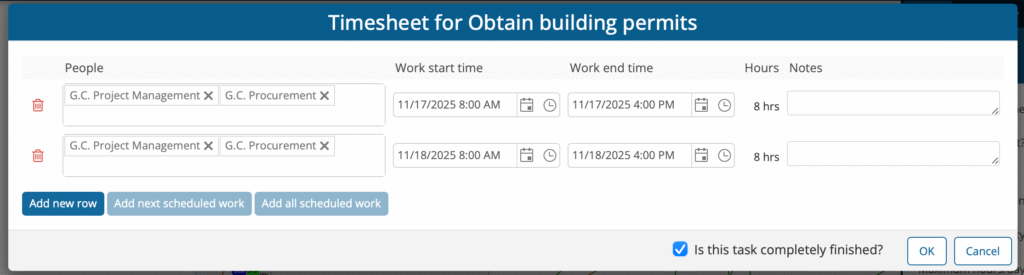
If users prefer to enter all timesheet data at once, for example, when a task is completed, this button instantly adds every remaining scheduled workday.
To reduce user effort:
All rows are auto-generated
The Is this task completely finished? checkbox is automatically selected
“Add next scheduled work” and “Add all scheduled work” become disabled (since no scheduled work remains)
Users can still click Add new row to record work that went beyond the planned schedule (e.g., an extra day).
Add new row
Adds a row for recording work that did not follow the plan.
To save time, when a new row is added after completing scheduled work, the system automatically sets:
The next day
Default working hours
Encouraging Accurate Tracking
The Timesheet editor is designed to balance accuracy with convenience:
Scheduled work is pre-loaded
Next-day or full-schedule entries can be added with one click
Task completion is auto-marked when all scheduled work is added
Users only modify what changed, rather than re-entering everything
Despite these conveniences, many users still prefer updating % Complete because it is simpler. This behaviour is largely inherited from traditional tools like Microsoft Project and Primavera P6, where timesheet entry is cumbersome.
BuilderPlan and GamePlan aim to make accurate tracking far more approachable.
When the Task Is Fully Complete
Once a task is marked as fully complete (via % Complete or Timesheets):
The task fades on the Whiteboard, making its status visually clear
An Actuals bar appears on the Gantt chart
The task is removed from Lookahead reports
These visual cues help teams communicate their plans and stay focused on remaining work.