

Task-level costs let you track expenses that apply specifically to a single task. These costs can be fixed or variable, and each behaves differently in the schedule. Task costs are optional but extremely useful when you want accurate budget tracking, cash-flow forecasting, or high-level cost estimates.

Types of Task Costs
1. Fixed Costs
Fixed costs stay the same regardless of how long the task actually takes.
Examples:
- Permit fee
- Equipment rental flat fee
- One-time subcontractor charge
- Testing or inspection fees
A fixed cost applies once to the task and does not increase or decrease if the task is completed earlier or later than originally planned.
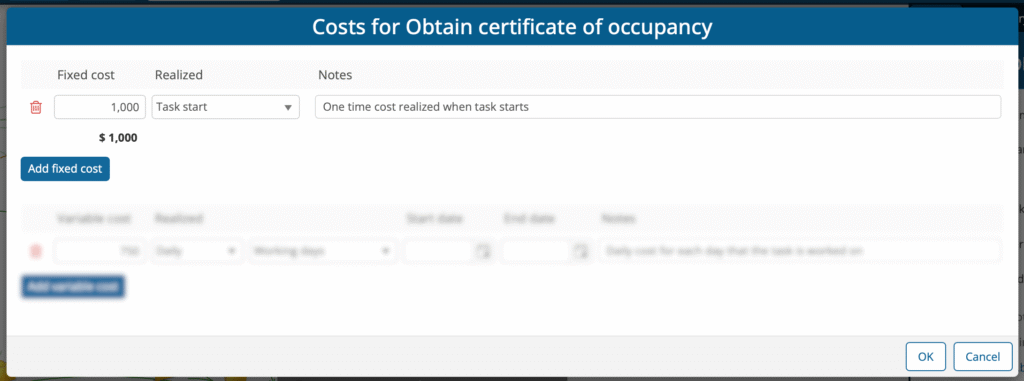
When are fixed costs realized?
When adding a fixed cost, you can choose how the cost is realized in the schedule:
Date – you choose the exact date.
Plan start – realized on the first day of the plan.
Project start – realized when the project’s start date occurs.
Task start – realized when the task actually begins.
Evenly distributed – spread across the days the task is scheduled to run.
If you select Evenly distributed, you can further choose whether the distribution occurs on:
All Days
Weekdays
Working days (based on the resource calendar)
This setting matters because BuilderPlan/GamePlan can generate a daily cost schedule, which many users rely on for cash-flow forecasting.
2. Variable Costs
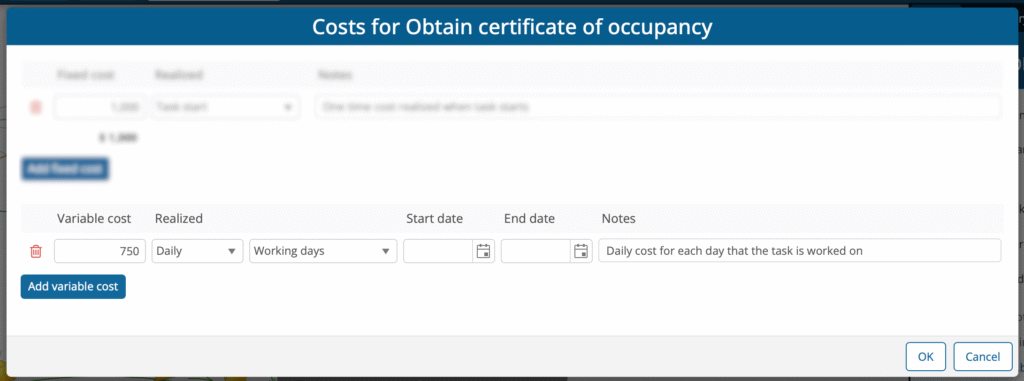
Variable costs scale based on how long the task takes. They can be defined as:
Hourly
Daily
Examples:
- Renting equipment priced per hour/day
- Using materials over time
- Estimation of labor costs if no resources are assigned
Variable costs are automatically recalculated if the task’s actual duration changes.
When to Use Task Costs vs. Resource Costs
If your task is resource loaded, and the resources have hourly or daily cost rates assigned to them, the software will automatically calculate labor costs. In these cases:
👉 Do NOT add duplicate variable costs at the task level.
Task-level variable costs are helpful when:
You’re planning at a high level and haven’t assigned resources
You want to simulate time-based expenses without modeling resources
The task has non-labor variable costs (e.g., equipment rental billed hourly)
Variable Cost Date Ranges
Variable costs allow start and end dates. Leave this blank for the entered variable cost to apply for the entire schedule.
Why this matters:
Costs may change over time, especially for longer schedules.
Examples:
Hourly subcontractor rates increase annually
Daily equipment rental changes after a promotional period
Inflation needs to be considered for long-term schedules
By using multiple variable cost entries with different date ranges, you can accurately represent rate changes over the life of the schedule.
Viewing Task Costs in the Schedule
Costs for each task are calculated and can be viewed in the following locations:
- Whiteboard
- Project Summary
- Data panel > Tasks
- Tasks report
- Excel export
Costs for each task will soon be able to be displayed as a column in the Gantt chart.
If no costs exist, the Costs section is collapsed automatically. If costs do exist, the section automatically expands so you know they are there.
Summary
| Cost Type | Use When | Behavior |
|---|---|---|
| Fixed cost | One-time expense | Same regardless of task duration |
| Variable cost | Time-based expense | Scales with actual duration |
| Resource costs | Labor resources assigned | Automatically calculated |
💡 Tips
Use fixed costs for one-off expenses or commitments.
Use variable costs only when no resource rates exist or you need non-labor time-based costs.
Use date ranges to model rate increases over time.
Use Evenly distributed fixed costs when you need accurate cash flow forecasting across calendar days.